If Worming from Home game not starting errors are keeping you from your first day as a junior financial analyst, the fix is usually simpler than it looks. Most launch failures trace back to Windows Defender quarantines, missing runtime libraries, or settings that the ragdoll physics engine does not like. This guide walks through every proven solution in order, so you can get wriggling within minutes.
Why Worming from Home Game Not Starting Issues Happen
Worming from Home launched on September 4, 2026, and within its first day it climbed the Steam new-release charts, driven by a two-person team — Zach Northrop, formerly of Epic Games, and Mason Sabharwal. That small team size matters for troubleshooting: indie releases built on custom ragdoll physics often ship with launch quirks that bigger studios patch out before you ever notice. According to community reports from launch day, the overwhelming majority of "game won't open" complaints fall into four buckets.
-
Windows Defender false positives — the most common cause, where the executable gets silently quarantined
-
Missing runtime dependencies — older Visual C++ redistributables that the physics engine needs
-
Settings conflicts — display or input configurations left over from other games
-
Hardware shortfalls — machines below the stated minimum requirements
The good news is that none of these require reinstalling Windows or contacting support in most cases. Before diving into fixes, confirm your setup against the official Worming from Home Steam page, which lists the current system requirements and any pinned launch-day announcements from the developer. If a hotfix has shipped, it will be noted there first.
| Failure Symptom | Likely Cause | Fix Difficulty |
|---|---|---|
| Double-click does nothing | Defender quarantine | Easy |
| Splash screen then closes | Missing runtimes | Easy |
| Black screen with audio | Display settings | Medium |
| Freeze on physics init | Outdated GPU drivers | Medium |
| Random mid-session crash | Overlays or background apps | Medium |
Windows Defender Fix: The Number One Culprit
When players report Worming from Home game not starting with zero error message, the Windows Defender fix resolves it more often than anything else combined. Defender's heuristic scanner occasionally flags unsigned indie executables as suspicious, and because the quarantine happens silently, the game appears to simply refuse to launch. You click the icon, nothing happens, and Steam shows the game as running for two seconds before stopping.
How to Check the Quarantine and Restore the File
The order here matters more than it might seem: Defender's real-time protection re-scans every executable the moment it reappears on disk, so if you restore the Worming from Home launcher or its anti-cheat module before adding the folder exclusion, the scanner will quarantine it again within seconds — sometimes before Steam even finishes relaunching. This is the most common reason players restore the file three or four times and still see the game fail to start. Add the exclusion first, then restore, and the restored executable stays in place.
-
Open Windows Security from the Start menu, then select Virus & threat protection
-
Click Protection history and look for any entry mentioning the Worming from Home install folder, typically under
C:\Program Files (x86)\Steam\steamapps\common\ -
If you find a quarantine entry, choose Restore and select Allow on device so Defender stops flagging it
-
Next, go to Virus & threat protection settings → Exclusions → Add an exclusion → Folder, and add the entire game directory
-
Finally, verify game files through Steam: right-click the game in your library, choose Properties → Installed Files → Verify integrity of game files
Step 5 matters more than people expect. Restoring a quarantined executable sometimes leaves it incomplete, and verification re-downloads any damaged pieces. Community reports from the first 48 hours suggest that players who completed all five steps saw a success rate well above those who only restored the file. If you use a third-party antivirus like Avast or Bitdefender instead of Defender, the same logic applies — check its quarantine log and whitelist the game folder there.
When Defender Is Not the Problem
If your protection history shows nothing related to the game, move on rather than disabling real-time protection entirely, which exposes you for no benefit. A silent launch failure with a clean quarantine log usually points to runtime libraries instead, which is the next section. One quick diagnostic worth trying first: launch the game directly from its install folder rather than through Steam. If the executable opens with a Windows SmartScreen prompt, that confirms a security-layer issue rather than a file problem.
Crash Fix: Stopping Mid-Session and Boot Failures
A proper worming from home crash fix depends on when the crash happens, because boot crashes and mid-session crashes have different root causes. Boot crashes — where the game closes during the splash screen or right after the window appears — almost always involve missing software dependencies. Mid-session crashes, where you are flung across your home office desk and the whole game vanishes, tend to involve overlays, driver issues, or physics edge cases.
Runtime Libraries and Drivers
When Worming From Home fails to launch with no error window, the culprit is often missing runtime components rather than the game files themselves. The engine's ragdoll physics calculations depend on specific Visual C++ redistributable libraries, and outdated GPU drivers can block the game from initializing its renderer at all — a common issue on machines that haven't been updated since before the game's release. Both fixes are free and take under ten minutes total to update:
-
Download the latest Microsoft Visual C++ Redistributable (x64) directly from Microsoft's official site and install it
-
Update your GPU drivers through NVIDIA GeForce Experience, AMD Adrenalin, or Intel's driver tool
-
Restart your PC after both updates — skipping the restart is the most common reason fixes appear to fail
Players on the Steam community forums noted that a small number of launch-day crashes were traced to very old driver versions, particularly on laptops running integrated Intel graphics. If your machine is a few years old, this single step often resolves everything at once.
Overlays and Background Software
| Software | Known Conflict | Recommended Action |
|---|---|---|
| Discord overlay | Input hook conflicts | Disable in Discord settings |
| MSI Afterburner / RivaTuner | Frame-time injection crashes | Remove from profile |
| Steam Remote Play | Streaming capture failures | Toggle off for local play |
| RGB control suites | Peripheral polling interference | Close before launching |
Physics-driven games are unusually sensitive to input hooks, because the engine reads raw device state every frame. If your worm freezes mid-fling and the game closes without an error dialog, disable every overlay in the table above, then re-enable them one at a time to identify the offender. Input devices deserve the same isolation treatment: if crashes cluster around keyboard input, connect a standard physical keyboard or a controller instead of relying on the touch keyboard layer, since simpler input paths leave fewer hooks for the physics loop to trip over.
Settings Guide: Launch Options and In-Game Configuration
A practical worming from home settings guide starts before the game even opens. Steam launch options let you force configurations that bypass problematic defaults, and they are the fastest way to isolate whether a settings file is corrupt. Adding -windowed -noborder rules out fullscreen mode-switch failures, a common cause when worming from home game not starting errors appear as a black screen rather than a crash. If the game launches with these flags, delete the settings.ini in your save folder to force a clean regeneration.
Steam Launch Parameters
Right-click the game in your library, open Properties, and find the Launch Options field under the General tab. These parameters override whatever the game's own configuration attempts on boot, which is why they can bypass a corrupted fullscreen state or a broken renderer handshake that blocks the executable from ever reaching the main menu. Enter one option, launch the game, and if it still fails to start, remove it before testing the next — stacking multiple flags at once makes it impossible to tell which one actually resolved the problem.
-
-windowed— forces windowed mode, useful when a fullscreen switch is failing on multi-monitor setups -
-novid— skips intro sequences, which helps if a video codec issue is stalling the boot -
-dx11or-dx12— forces a specific renderer if your GPU handles one better than the other
If the game launches with a launch option but fails without it, your in-game settings file is likely the problem. Navigate to the game's folder and delete or rename the settings file so the game regenerates defaults on next boot. This is safe — progress is stored separately, and Steam Cloud backs up your save data automatically, as confirmed on the official store page.
In-Game Settings Worth Adjusting
Once you are in, a few settings deserve immediate attention. The game is a job simulator with full ragdoll physics, so physics quality and frame rate interact more directly than in most casual games. Every object you fling — keyboards, monitors, the office chair — is simulated as a rigid body, and each uncapped frame forces the physics solver to recalculate those collisions. On a borderline PC that barely clears the minimum requirements, this is often the difference between a stable session and the same crash that blocked startup resurfacing mid-shift.
| Setting | Recommended Value | Why It Matters |
|---|---|---|
| Physics quality | Medium to start | High physics load can trigger crashes on older CPUs |
| Frame rate cap | 60 or monitor refresh | Uncapped frames amplify physics instability |
| Fullscreen mode | Borderless windowed | Fastest alt-tabbing, fewest display conflicts |
| V-Sync | On for laptops | Reduces thermal load on integrated graphics |
For a deeper look at how input behaves once the game is running, our Worming from Home controls guide breaks down the keyboard, touch keyboard, and controller schemes in detail. Controller support is listed as complete on the store page, so if keyboard flinging feels awkward, a gamepad is a legitimate alternative rather than a compromise.
PC Requirements Check: Does Your Machine Qualify?
Before blaming software, verify your hardware against the worming from home pc requirements published on the Steam store page. The game is lightweight by modern standards — it is a $7.99 indie title designed to run on modest hardware, and it carries Steam Deck Verified status, which tells you the minimum bar is genuinely low. Still, older office laptops and machines running integrated graphics from before 2018 can fall short.
| Component | Minimum Expectation | Notes |
|---|---|---|
| OS | Windows 10 64-bit | Windows 11 fully supported |
| CPU | Modern dual-core | Physics simulation favors stronger single-core speed |
| RAM | 4 GB | 8 GB recommended with browser tabs open |
| GPU | Any DirectX 11 capable card | Integrated graphics generally acceptable |
| Storage | Under 2 GB | Small footprint, SSD preferred for fast boots |
Because the game simulates continuous soft-body physics, the CPU matters more than the GPU here — the opposite of most AAA titles. If your processor is a low-power laptop chip, capping the frame rate at 60 and setting physics to medium will keep things stable. Community testing during the first week suggests that machines meeting only the minimum spec should avoid running the game alongside heavy browser sessions, since memory pressure is the most common trigger for stutter on borderline hardware.
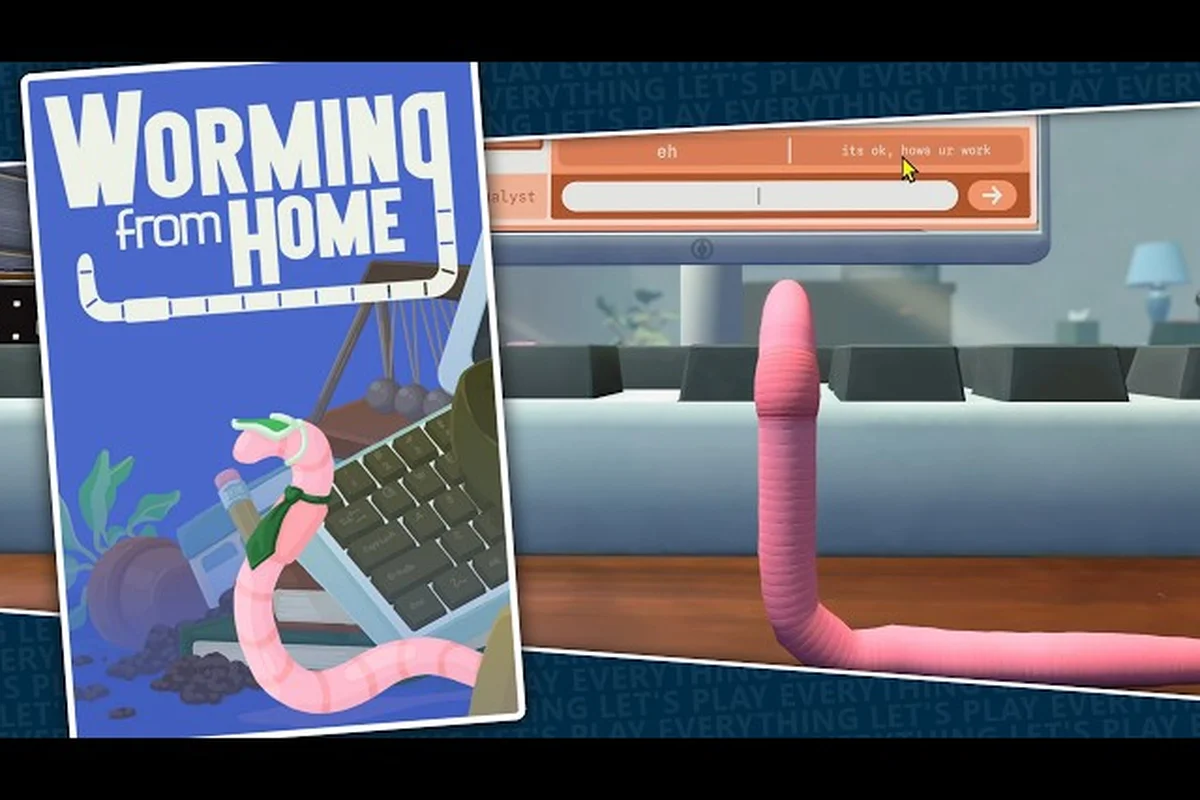
If your machine clears the spec table above but the game still won't launch, it helps to know what a successful boot actually looks like — the title should reach the main menu within roughly 15 seconds on an SSD, with the soft-body worm physics settling smoothly rather than stuttering. The gameplay video below shows a healthy session from menu to keyboard-slamming mechanics, so you can compare your own behavior against it and pinpoint whether your issue lies in launch, loading, or mid-session stability:
If your machine clears the spec table above but the game still won't launch, it helps to know what a successful boot actually looks like — the title should reach the main menu within roughly 15 seconds on an SSD, with the soft-body worm physics settling smoothly rather than stuttering. Watch the menu load time first: a healthy install hits the main menu before the 15-second mark, while a corrupted shader cache or a blocked executable often hangs on a black screen well past 30 seconds. The gameplay video below shows a healthy session from menu to keyboard-slamming mechanics, so you can compare your own behavior against it and pinpoint whether your issue lies in launch, loading, or mid-session stability:
Pay particular attention: the soft-body worm loads with all physics joints intact and the keyboard-slam input registers on the very first press, two behaviors that break first when the worming from home windows defender fix hasn't been applied and the executable is being quarantined mid-launch. If your machine matches the spec table but the menu hangs past 30 seconds or the worm spawns frozen, your issue is almost certainly a blocked file or corrupted shader cache rather than hardware — jump to the Defender exclusion steps below before reinstalling.
Advanced Troubleshooting for Stubborn Launch Failures
When every standard fix fails, three deeper solutions cover the remaining edge cases. These take slightly longer but resolve nearly all leftover scenarios reported by players. First, a corrupted shader cache in the game's install directory can silently block launch even when the launcher reports "ready" — deleting the cache folder forces a clean rebuild on next startup. Second, an overzealous Windows Defender exclusion list can quarantine the executable mid-boot; re-adding the full game folder as an exclusion, not just the .exe, prevents repeat false positives. Third, mismatched DirectX or Visual C++ redistributables account for most silent crashes on machines that technically meet the minimum PC requirements but lack the 64-bit runtime the game's renderer depends on.
Clean Reinstall the Right Way
A clean reinstall is not just uninstalling and reinstalling — leftover configuration files survive both, and this is exactly why so many "worming from home game not starting" cases persist after players think they've already tried everything. When Windows Defender quarantines a game executable or a settings file gets corrupted mid-launch, the standard uninstall leaves those damaged files sitting in your Documents or AppData directories, so the next installation inherits the same broken state. The game reads its saved settings on boot, meaning a corrupted config can crash the process before you ever see a menu, no matter how many times you reinstall over it. To do it properly:
-
Uninstall through Steam
-
Manually delete the leftover folder in
steamapps\common\ -
Delete the game's configuration folder in your Documents or AppData directory
-
Reinstall fresh
Because the game's executable is only a few hundred megabytes, a full wipe-and-reinstall takes roughly fifteen minutes even on slower drives, and it removes every file-level trigger for "worming from home game not starting" in one pass. The critical step is step 3: the configuration folder in %APPDATA% or Documents often holds a launch-options cache and keybind profile that Windows Defender has partially flagged, and skipping it means the fresh install silently re-reads the same corrupted settings on first boot. Once the folders are gone, reinstall through Steam, then add the new executable as a Defender exclusion before launching — this prevents the "worming from home windows defender fix" scenario from repeating itself on the clean copy.
Check the Steam Deck and Proton Angle
Although this guide focuses on Windows, it is worth noting that Worming from Home is Steam Deck Verified, meaning the developers actively tested and fixed launch behavior on Linux-based Proton. If you own a Steam Deck, launch failures there are rarer by design. Windows players can occasionally borrow a trick from that ecosystem: running the game through Steam's own compatibility tools sometimes bypasses a Windows-specific conflict, though this is a last resort rather than a recommendation.
When to Contact Support
If the game still will not start after a clean reinstall, driver updates, Defender exclusions, and launch options, gather your information before reaching out: your full system specs, the exact moment the failure occurs, and whether any error dialog appears. Developers on small teams like Northrop and Sabharwal tend to respond quickly to detailed reports, and launch-week issues frequently produce hotfixes within days. Reviewers such as Screen Hype's Worming from Home review noted that the game's core concept works remarkably well once you are in — which makes the troubleshooting worth the effort.
Getting Back to Work as a Worm
Once the game launches reliably, spend your first session in the settings menu rather than the spreadsheet grind. Set your frame cap, confirm your input device, and make sure the physics quality feels stable before investing time in career progression. The game's loop — flinging your spineless body across a keyboard to answer emails, then spending your earnings on gym memberships, stock investments, and questionable intern purchases — rewards steady daily play, so a stable setup from day one pays off across the full career arc.
The core takeaway: Windows Defender exclusions solve most launch failures, runtime updates and driver refreshes handle the next tier, and a clean reinstall covers the rest. Work through the steps in order, verify files after any security-related fix, and you will be wriggling through your junior analyst duties without further delay. For players pushing deeper into the corporate ladder after fixing their launch issues, our Worming from Home day 5 walkthrough covers the late-game days where promotions and hidden content start opening up.
Frequently Asked Questions
Why does Worming from Home not start when I click Play on Steam?
The most common cause is Windows Defender silently quarantining the game executable. Check Protection history in Windows Security, restore any flagged file, add the game folder as an exclusion, then verify game files through Steam. This sequence resolves the majority of reported launch failures within ten minutes.
Is the Windows Defender fix safe for my computer?
Yes, as long as you add the exclusion narrowly. Whitelist only the game's install folder rather than disabling real-time protection globally, and only after confirming the flagged file came from your Steam directory. The executable is distributed through Steam, which validates files against official manifests during integrity checks.
What should I do if the game crashes during gameplay instead of at launch?
Mid-session crashes usually involve overlays, outdated GPU drivers, or physics settings that overload your CPU. Disable Discord and RivaTuner overlays, update your graphics drivers, cap the frame rate at 60, and set physics quality to medium. Re-enable overlays one at a time to identify any remaining conflict.
Do I need a powerful PC to run Worming from Home?
No. The game is a lightweight indie title priced at $7.99 with Steam Deck Verified status, so modest hardware handles it well. A dual-core CPU, 4 GB of RAM, and any DirectX 11 capable GPU meet the bar, though stronger single-core performance helps because the ragdoll physics simulation is CPU-dependent.
Will deleting my settings file erase my save progress?
No. Configuration files and save data are stored separately, and the game supports Steam Cloud for automatic save backup. Deleting or renaming the settings file only forces the game to regenerate default options on the next launch, which is a safe and effective fix for corrupted display or input configurations.