
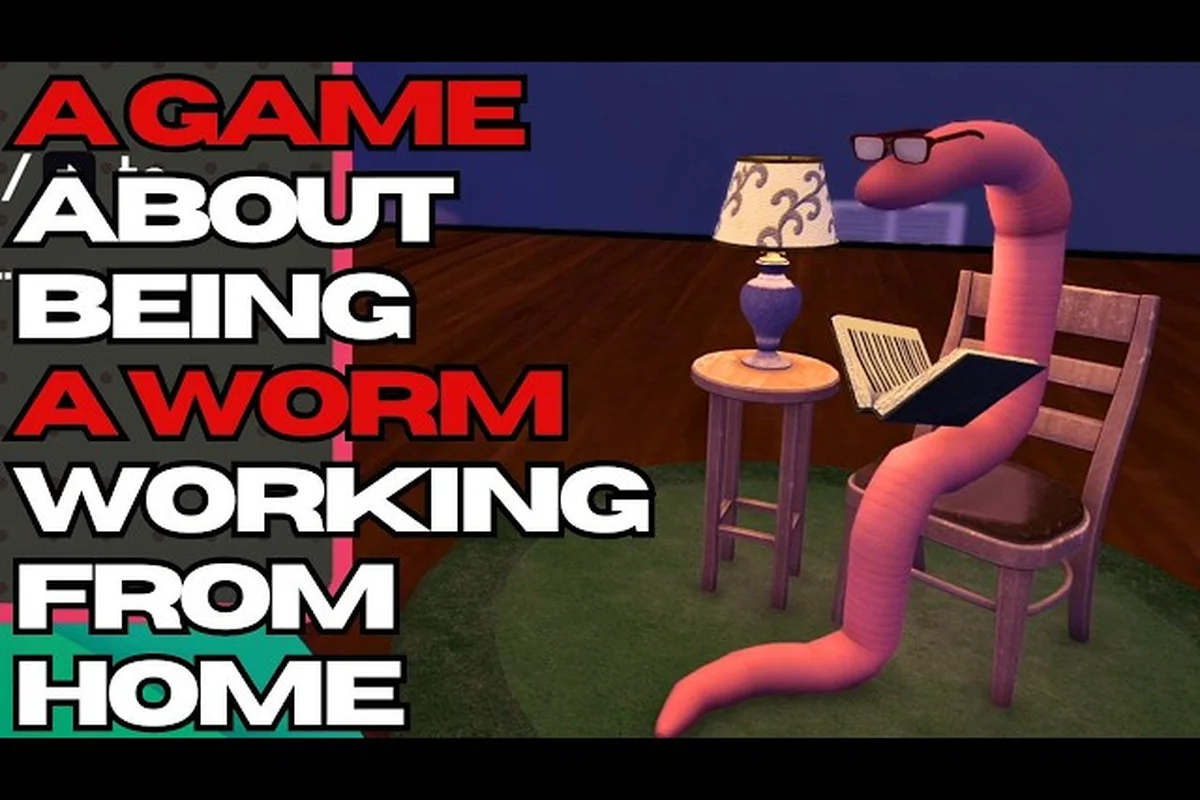
Running a remote finance job as a literal pink earthworm sounds absurd, yet Worming from Home turns that exact premise into a tight task-management puzzle where every deadline matters. The hook is simple: your boss expects deliverables on time, and the calendar doesn't care that you have no spine. Staying on top of Worming from Home boss tasks is the single biggest factor separating a promoted junior analyst from a fired one, which is why a clear walkthrough of action items and timers pays for itself within the first in-game workday.
Understanding the Boss Task Loop in Worming from Home
Before optimizing anything, it helps to understand what the game actually asks of you. The boss in Worming from Home is a hands-off manager who communicates entirely through emails, scheduled meetings, and a shared calendar. Every shift, that calendar spawns a fresh set of action items tied to deliverables: spreadsheets, message replies, phone calls, video meetings, and a handful of one-off requests. The whole loop is built around juggling those items before their internal timers expire.
The action items fall into three broad families. Spreadsheet action items ask you to type numbers into specific cells, drag formulas, or reconcile rows against a target total. Communication action items include replying to messages from coworkers, picking dialogue options during calls, and joining scheduled video meetings where you must hit on-topic prompts. Miscellaneous action items cover one-offs like sending your boss a selfie (the "Check Out This Cool Worm" achievement, unlocked by only 11.3% of players according to Steam global gameplay stats at launch) or printing documents at the office printer.
Each task has three properties that matter: a deadline shown on the calendar, a priority tier flagged by a colored border, and a failure consequence that ranges from a morale hit to an outright firing event. Missing a high-priority deadline too many times triggers the bad ending, and week two is where the design turns the screws: the daily tasks list keeps growing, timers keep compressing, and the game expects you to have internalized the core loop by then. That escalation is deliberate — week one teaches the verbs, week two tests whether the habits actually stuck — so front-load your timer management in week one and the second week stops feeling like a wall.
| Task Family | Typical Timer | Common Failure Mode | Skill It Tests |
|---|---|---|---|
| Spreadsheet | 90–180 in-game seconds | Wrong cell, bad formula | Typing accuracy, layout memory |
| Messages | 45–90 in-game seconds | Wrong reply choice | Reading comprehension |
| Calls / Meetings | 60–120 in-game seconds | Off-topic dialogue | Conversation memory |
| Printer / Selfie | 30–60 in-game seconds | Skipped or misfired | UI awareness |
| Boss one-offs | Variable | Ignored calendar block | Calendar scanning |
The boss task loop is forgiving on day one because the daily tasks list is short and timers are generous, but it tightens quickly. By the end of week one, players commonly juggle six to eight simultaneous action items, and the calendar fills with overlapping deadlines that demand real prioritization.
The Calendar System: How Deadlines and Timers Work
The calendar is the single most important screen in the game, and treating it as a passive decoration is the fastest way to fall behind. Worming from Home calendar tasks explained simply: every morning, the calendar slots in your boss's expected deliverables, your scheduled meetings, and any company-wide events. Each block carries a countdown that ticks down using the in-game task timer, which only advances while you are at your desk interacting with apps.
Reading the Daily Calendar
The daily tasks list appears as colored tiles across three rows. Red tiles are hard deadlines tied to the boss's direct asks and carry the harshest penalties for missing. Yellow tiles are soft deadlines from coworkers, and missing them mostly costs reputation. Blue tiles are optional enrichment, like reading emails or checking the stock market, that boost your stats when cleared but never fail the run.
Underneath each tile sits the task timer, displayed in in-game seconds. The seconds-to-real-time ratio is roughly 1:1 when you are working, so a 90-second spreadsheet tile gives you about a minute and a half of real time. The timer pauses the moment you alt-tab away from the relevant app, which is the single biggest trick experienced players exploit.
Timer Behavior Across the Day
The in-game workday has three time blocks: morning, midday, and afternoon. Each block advances the calendar by roughly two hours of office time, during which new tiles spawn and old ones expire. If a tile expires, it flips to a red "missed" state and the morale meter drops by a small amount. Three missed red tiles in a single day trigger an emergency review, and six across a week lead to the manager-call scene where you are reassigned or fired.
| Time Block | New Tiles Spawned | Tile Expiry Risk | Recommended Focus |
|---|---|---|---|
| Morning | 4–6 | Low (generous timers) | Knock out red tiles first |
| Midday | 3–5 | Medium | Clear yellows, prep meetings |
| Afternoon | 2–4 | High (compressed timers) | Finish remaining, scout evening |
The hidden mechanic most players miss is that the calendar does not refresh until you physically click the "Start Day" button. That means you can keep working into the visual evening while timers tick down, which is the foundation for every speed-clear strategy later in this guide.
Daily Tasks List Breakdown by Day Type
Worming from Home daily tasks list patterns are surprisingly predictable once you realize the game seeds from a fixed pool. There are three day types, and each one rotates on a loose weekly cadence. Recognizing the type within the first ten seconds of a shift lets you plan your whole morning.
Standard Workday
Standard workdays make up roughly 60% of the week. The boss issues two red-tile deliverables (usually one spreadsheet and one message batch), there are two yellow coworker requests, and one blue optional. The morning always starts with a stand-up video meeting, which is free reputation if you pick on-topic replies. This is the easiest day to clear cleanly and a good training ground for newer players still learning the spreadsheet and messages app.
Meeting-Heavy Day
Meeting-heavy days are the danger days. The boss stacks three or four video calls back-to-back, and each one counts as a red tile because showing up late is treated as a missed deliverable. The trick is to prep your spreadsheet during the call downtime, since the timer pauses whenever the call dialogue is active. Community players on Steam reviews consistently flag these days as the ones that ruin a promising run, so treat them as a separate minigame rather than an extension of normal work.
Deadline Crunch Day
Deadline crunch days happen once per week and bundle a massive spreadsheet, several message replies, and a surprise boss request into a single afternoon block. The timers here are 20–30% shorter than usual, which is why pre-planning pays off. Most players who fail these days report trying to clear tasks in the order they appear, which is the worst possible strategy because the shortest timer is rarely on the first tile.
| Day Type | Red Tiles | Yellow Tiles | Blue Tiles | Difficulty | Key Strategy |
|---|---|---|---|---|---|
| Standard | 2 | 2 | 1 | Easy | Knock out reds before any yellow |
| Meeting-Heavy | 3–4 | 1 | 1 | Hard | Use call time to prep spreadsheets |
| Crunch | 4–5 | 1–2 | 0 | Expert | Clear shortest-timer red first |
Fast-Clear Strategies: How to Complete Tasks Faster
Learning how to complete tasks faster in Worming from Home comes down to a handful of repeatable habits rather than twitch reflexes. The game's timer system rewards players who reduce wasted seconds between actions, and the compounding gains turn a 40-minute workday into a 25-minute one once internalized.
For a detailed look at how players experience and interpret the worming from home boss tasks in practice, community-sourced impressions provide useful real-world context, as summarized in the Steam community discussions for The Black Pool.
Pre-Plan the First 60 Seconds
The single most consistent speed trick is to plan the first minute of the shift before clicking anything. Read the calendar, identify the red tile with the shortest timer, and route straight to that app. Players who default to opening the email first lose an average of 15 seconds per shift, which adds up to over an hour of lost work across a full in-game week. Treat the calendar as a battle map and the tiles as enemy spawns.
Stack Actions Across Apps
Every app in Worming from Home has a brief "thinking" pause after a major action. Use those pauses to queue the next task. For example, after submitting a spreadsheet, immediately drag open the messages window and start the next reply, because the message app loads during the spreadsheet's confirmation animation. This is the same trick speedrunners use in similar office sims, and it cuts roughly 10–15% off total clear time once muscle memory sets in.
Exploit the Pause Mechanic
The in-game task timer pauses whenever you alt-tab to a different app, including the calendar itself. This means you can extend a 60-second tile into a 90-second effective window just by glancing at the calendar in the middle of a spreadsheet cell entry. The pause does not count as idle time, so there is no penalty for scanning ahead. Veteran players call this "timer breathing," and it is the foundation of every clean clear past day three.
Batch Boss Replies
The boss sends a batch of emails and messages at the start of each block, and replying to them in one sitting is faster than responding in arrival order. Open the messages app, sort by sender, and clear the boss's queue first. The replies use a small pool of correct answers, so memorizing the top 10 boss-favored responses eliminates hesitation. Clearing the whole batch in one pass also keeps the queue tidy, so anything you skipped is easier to spot before the next block of tasks lands.
| Strategy | Time Saved / Shift | Difficulty to Learn | Impact on Failure Rate |
|---|---|---|---|
| 60-second pre-plan | 15–20 sec | Low | High |
| Action stacking | 30–45 sec | Medium | Medium |
| Timer breathing | 20–30 sec | Low | High |
| Batch boss replies | 25–35 sec | Medium | Medium |
| Calendar-first routing | 40–60 sec | High | Very High |
Boss Task Action Items Explained
The action items the boss assigns are not random; they cycle through a fixed pool of roughly 30 distinct request types. Understanding what each one actually demands removes the hesitation that causes most missed deadlines. If you want a deeper breakdown of the spreadsheet side specifically, the Worming from Home tasks guide covers cell entry and formula patterns in detail.
Spreadsheet Deliverables
Spreadsheet deliverables are the most common boss request. The typical prompt shows a target value in a corner cell and a partially filled grid below it. You need to type numbers, drag a formula down a column, or reconcile a total. The fastest approach is to identify the target cell first, then work backward to see which inputs feed into it. The game rewards accuracy, not speed, on these tasks, so a correct submission at 80% timer remaining beats a wrong one at 30%.
Communication Deliverables
Communication deliverables include message replies, email responses, and live call dialogue. Each one has a small set of "correct" answers that the boss or coworker expects. Wrong answers don't fail the task outright, but they cost reputation, which compounds over the week. The single best habit is to read the full message thread before replying, because the correct answer usually references something from two messages up.
One-Off Boss Requests
One-off boss requests are the wildcard tiles. These include the selfie task, the printer task, the "drop by the office" task, and a few surprise asks tied to story beats. They appear with short timers and no warning, which is why the calendar scan habit pays off. The printer task in particular is a common stumble point, and the dedicated walkthrough at Worming from Home printer guide clears up the UI confusion that catches first-timers.
Deadline-Linked Asks
A small number of boss asks carry story weight, like delivering a finished report before the quarterly review. Missing these is what triggers the bad ending, and the game does not warn you beyond a subtle calendar highlight. Treat any red tile with a unique icon as a hard save point, because clearing it locks in a safe path forward.
| Action Item Type | Average Timer | Common Pitfall | Best Prep |
|---|---|---|---|
| Spreadsheet | 120 sec | Wrong target cell | Read target first |
| Message reply | 60 sec | Skim-reading thread | Read full thread |
| Live call | 90 sec | Off-topic dialogue | Review agenda tile |
| Selfie / printer | 45 sec | UI unfamiliarity | Practice once on day 1 |
| Deadline-linked | 150 sec | Icon overlooked | Scan calendar twice |
Frequently Asked Questions
What is the fastest way to clear Worming from Home boss tasks on a meeting-heavy day?
Mute the call as soon as it starts and prep your next spreadsheet during the dialogue, because the in-game task timer pauses while the call window is active. Most players clear these days in roughly 20 minutes by treating each call as free setup time rather than a chat obligation. This habit alone prevents the most common week-two failure.
How does the Worming from Home task timer behave when I alt-tab?
The timer pauses the moment you switch to any non-work app, including the calendar itself, and resumes the instant you return. There is no idle penalty for short scans, which is why experienced players glance at the calendar every 30–45 seconds to re-prioritize. Long alt-tabs beyond a couple of minutes do start costing reputation, so use the pause for quick checks, not breaks.
Which action items should I clear first each shift?
Always clear the red tile with the shortest timer first, regardless of which app it lives in. The game's failure math weights short-timer misses much harder than long-timer misses, so protecting the tightest deadline removes the biggest risk. Yellow and blue tiles can wait until every red tile is either cleared or comfortably ahead of its countdown.
Does the Worming from Home calendar guide change after the promotion arc?
Yes, the calendar compresses noticeably once you hit the senior analyst promotion, with timers dropping by roughly 25% and a new tier of red tiles tied to direct reports. The habits built in the junior phase still apply, but you need to layer in the speed tricks from the fast-clear section above. If you are approaching the promotion, the broader Worming from Home beginner guide maps the full week-by-week pacing.
Can I recover from a missed boss task without restarting?
A single missed red tile drops morale but does not end the run, and a short reply chain from HR can sometimes restore it. Two missed reds in the same block, however, lock in a bad ending path, so restart is usually the cleaner choice past that point. Save frequently, especially before any meeting-heavy day, so recovery is one load away.